Module 5: Combining ambient and sidecar mode
Istio’s ambient mode is ideal for new mesh deployments. But it can be combined with sidecars, with caveats:
-
Existing sidecar meshes will require an update (restart)
-
Traffic between sidecars and ambient workloads will bypass waypoints, meaning only L4 features are applied.
| Recommendation: Keep ambient and sidecar workloads in SEPARATE namespaces. |
About this module
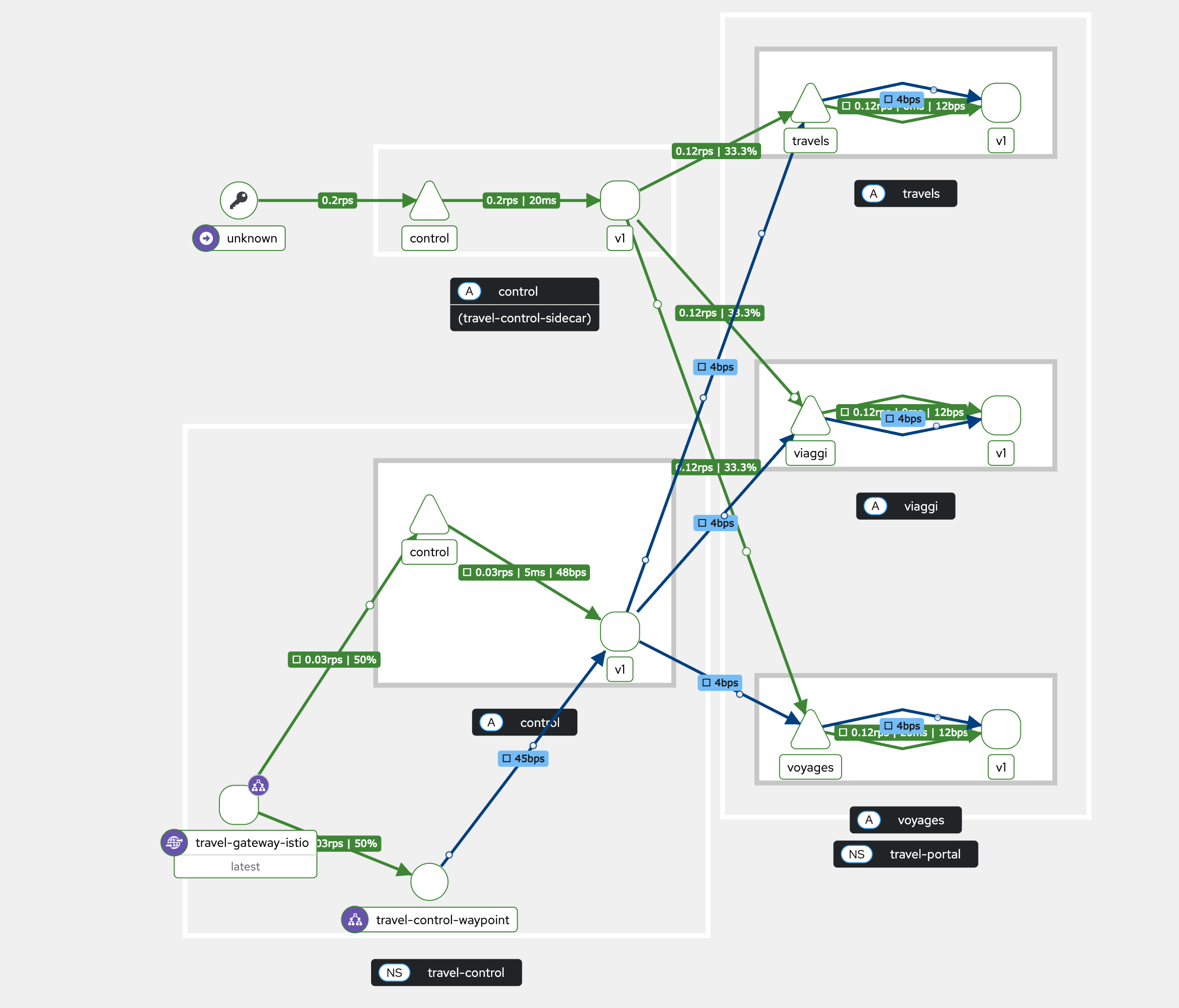
In this module we are going to create a second ingress namespace with the control service inside. But the control service uses a sidecar as dataplane and is communicating with the travel portals, which are running in ambient mode.
Navigate to the subdirectory: 050-ambient-and-sidecar
|
Task 1: Create the namespace
Create the travel-control-sidecar namespace with the following command:
apiVersion: v1
kind: Namespace
metadata:
  labels:
    istio-discovery: enabled
    istio-injection: enabled
  name: travel-control-sidecar
spec: {}
oc apply -f 01-ns-create.yamlThe namespace is labeled with the configured istio discovery selector istio-discovery=enabled and the injection label istio-injection=enabled.
Istio will inject sidecars for workloads in this namespace.
Task 2: Create pod monitors
PodMonitor objects must be applied in all mesh namespaces:
apiVersion: monitoring.coreos.com/v1
kind: PodMonitor
metadata:
  name: istio-proxies-monitor
  namespace: travel-control-sidecar
spec:
  selector:
    matchExpressions:
    - key: istio-prometheus-ignore
      operator: DoesNotExist
  podMetricsEndpoints:
  - path: /stats/prometheus
    interval: 30s
    relabelings:
    - action: keep
      sourceLabels: ["__meta_kubernetes_pod_container_name"]
      regex: "istio-proxy"
    - action: keep
      sourceLabels: ["__meta_kubernetes_pod_annotationpresent_prometheus_io_scrape"]
    - action: replace
      regex: (\d+);(([A-Fa-f0-9]{1,4}::?){1,7}[A-Fa-f0-9]{1,4})
      replacement: '[$2]:$1'
      sourceLabels: ["__meta_kubernetes_pod_annotation_prometheus_io_port","__meta_kubernetes_pod_ip"]
      targetLabel: "__address__"
    - action: replace
      regex: (\d+);((([0-9]+?)(\.|$)){4})
      replacement: '$2:$1'
      sourceLabels: ["__meta_kubernetes_pod_annotation_prometheus_io_port","__meta_kubernetes_pod_ip"]
      targetLabel: "__address__"
    - sourceLabels: ["__meta_kubernetes_pod_label_app_kubernetes_io_name","__meta_kubernetes_pod_label_app"]
      separator: ";"
      targetLabel: "app"
      action: replace
      regex: "(.+);.*|.*;(.+)"
      replacement: "${1}${2}"
    - sourceLabels: ["__meta_kubernetes_pod_label_app_kubernetes_io_version","__meta_kubernetes_pod_label_version"]
      separator: ";"
      targetLabel: "version"
      action: replace
      regex: "(.+);.*|.*;(.+)"
      replacement: "${1}${2}"
    - sourceLabels: ["__meta_kubernetes_namespace"]
      action: replace
      targetLabel: namespace
    - action: replace
      replacement: "default"
      targetLabel: mesh_id
oc apply -f 02-pod-monitors-create.yamlTask 3: Deploy the travel-control sidecar application component
This time we deploy the same Travel control dashboard with sidecar injection.
|
For sidecar proxies to use the HBONE/mTLS signaling option when communicating with ambient destinations, they need to be configured with ISTIO_META_ENABLE_HBONE set to true in the proxy metadata. |
Therefore the travel control deployment YAML has the following annotation:
spec:
  template:
    metadata:
      annotations:
        proxy.istio.io/config: |
          proxyMetadata:
            ISTIO_META_ENABLE_HBONE: "true"
Step 1: Apply the travel control deployment and service
oc apply -f 03-travel-control-app.yamldeployment.apps/control created
service/control createdCheck if we have two containers running in the pod:
oc get pods -n travel-control-sidecar -o jsonpath="{.items[*].spec.containers[*].name}"control istio-proxyStep 3: Access the Travel Control Dashboard
Get the Travel Control Dashboard URL from the Route by running the following command:
echo "https://$(oc get routes -n travel-control-sidecar control-sidecar -o jsonpath='{.spec.host}')"Open the Dashboard and verify it is working.
Step 4: Explore the Traffic Graphs
| Whenever you make changes in the Travel Portal application, it takes some time until Kiali picks up the metrics from the user-workload-monitoring and you actually see the changes. |
Go to Kiali, select the additional travel-control-sidecar namespace and watch the Traffic Graph: